Subscription Radar
Turn Apple subscription screenshots into a clean monthly spending dashboard — privately, on your device.
A simple, private way to see what you're really paying for every month. Import a screenshot from Apple's Subscriptions page, let on-device OCR detect each one, and watch your monthly total update instantly. No bank logins. No accounts. No data leaves your phone.
- On-deviceOCR with Apple Vision
- No accountsNo bank logins
- iOS 17+iPhone & iPad
Built around what your phone already knows.
Most subscription trackers ask you to hand over your bank login or your Apple ID. Subscription Radar takes the opposite approach: it works with screenshots you already have, processes them with on-device OCR, and stores everything locally. You stay in control of every input.
The result is a focused finance app that's fast to set up, never asks for credentials, and shows you exactly where your monthly money is going — including the subscriptions you forgot you were paying for.
A real financial command center, not another spreadsheet.
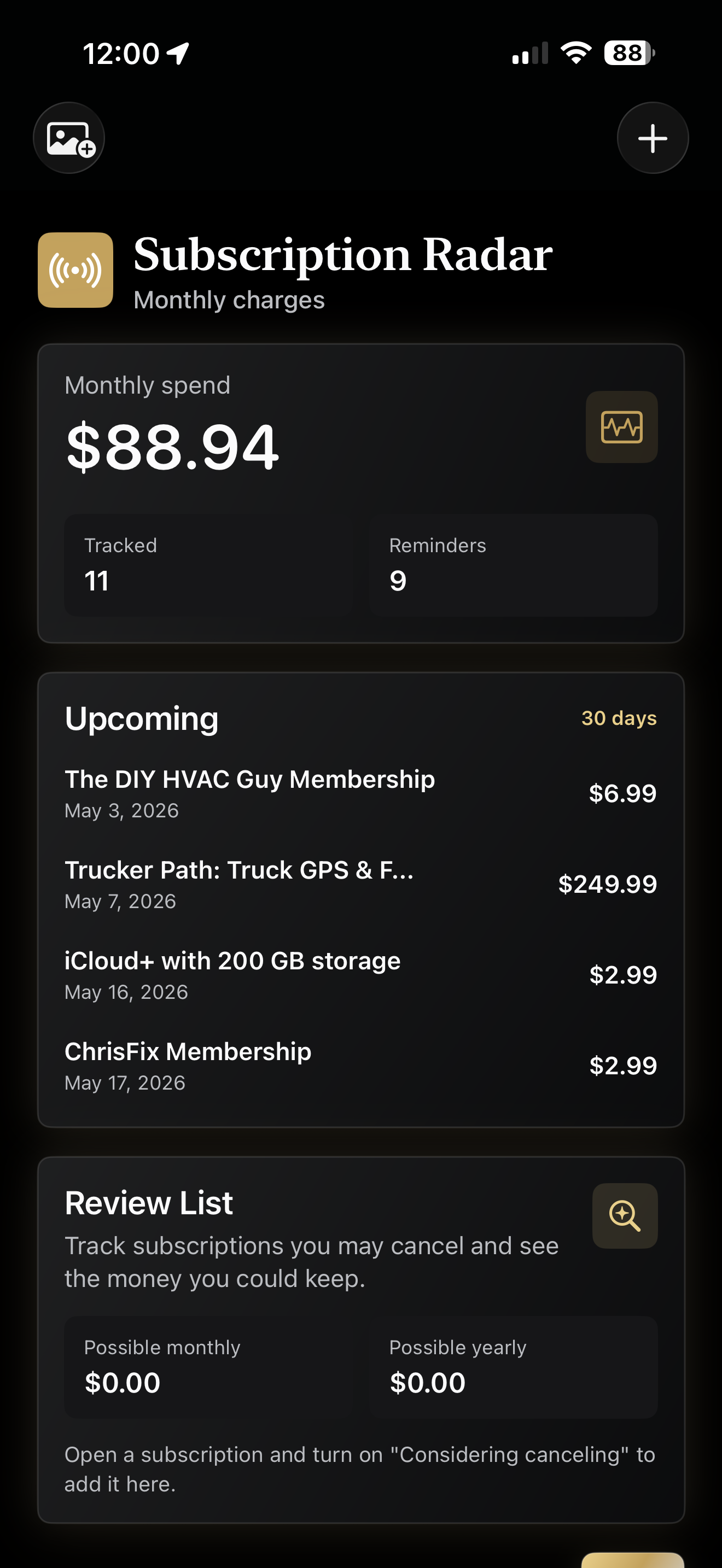
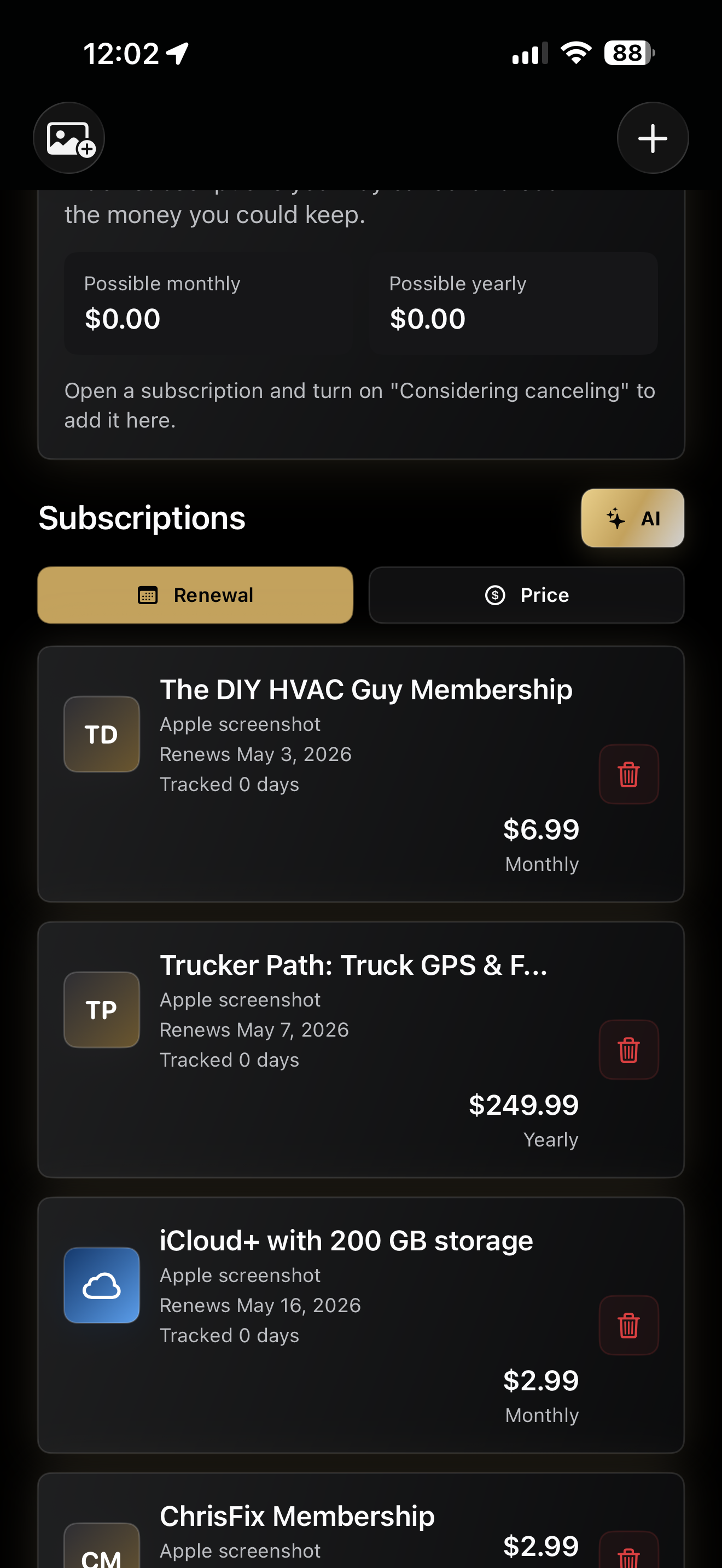
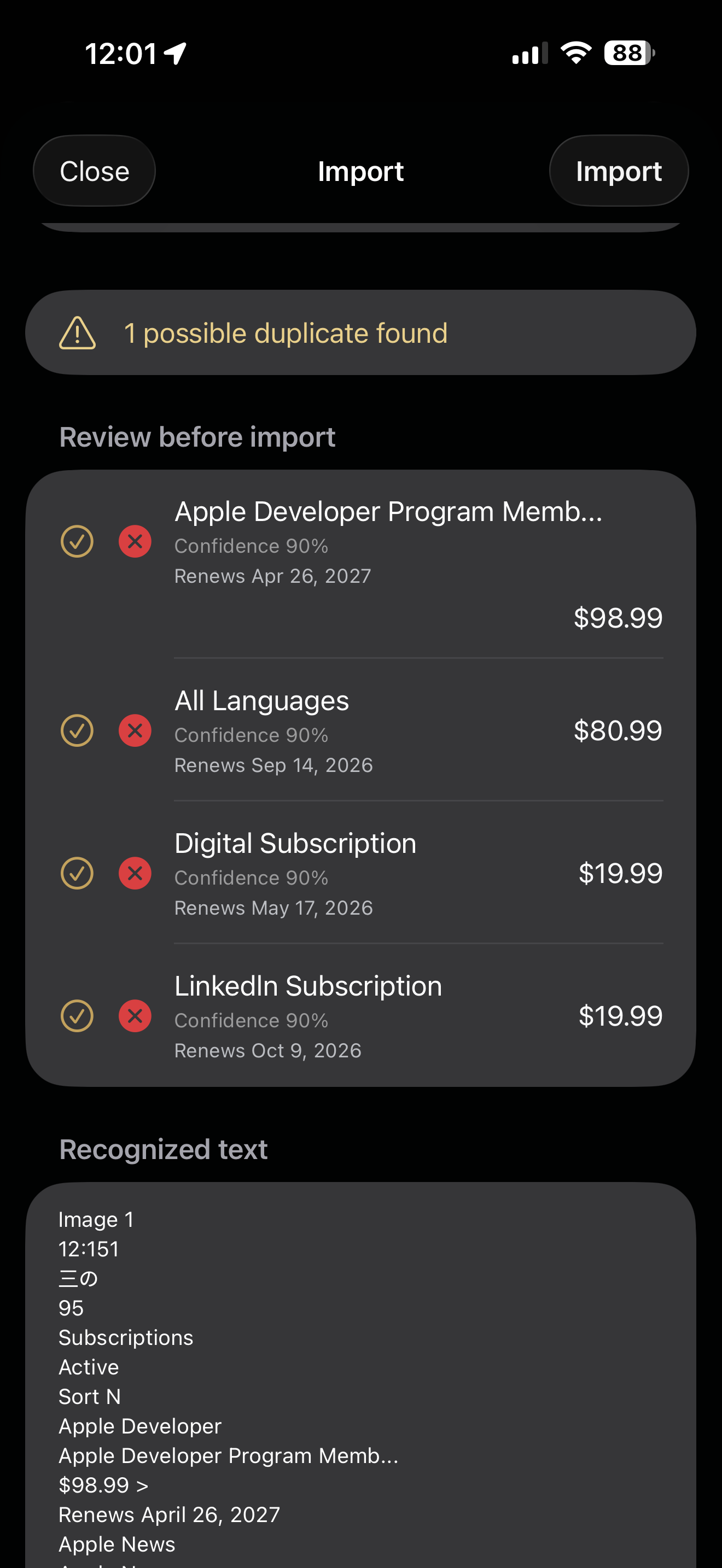
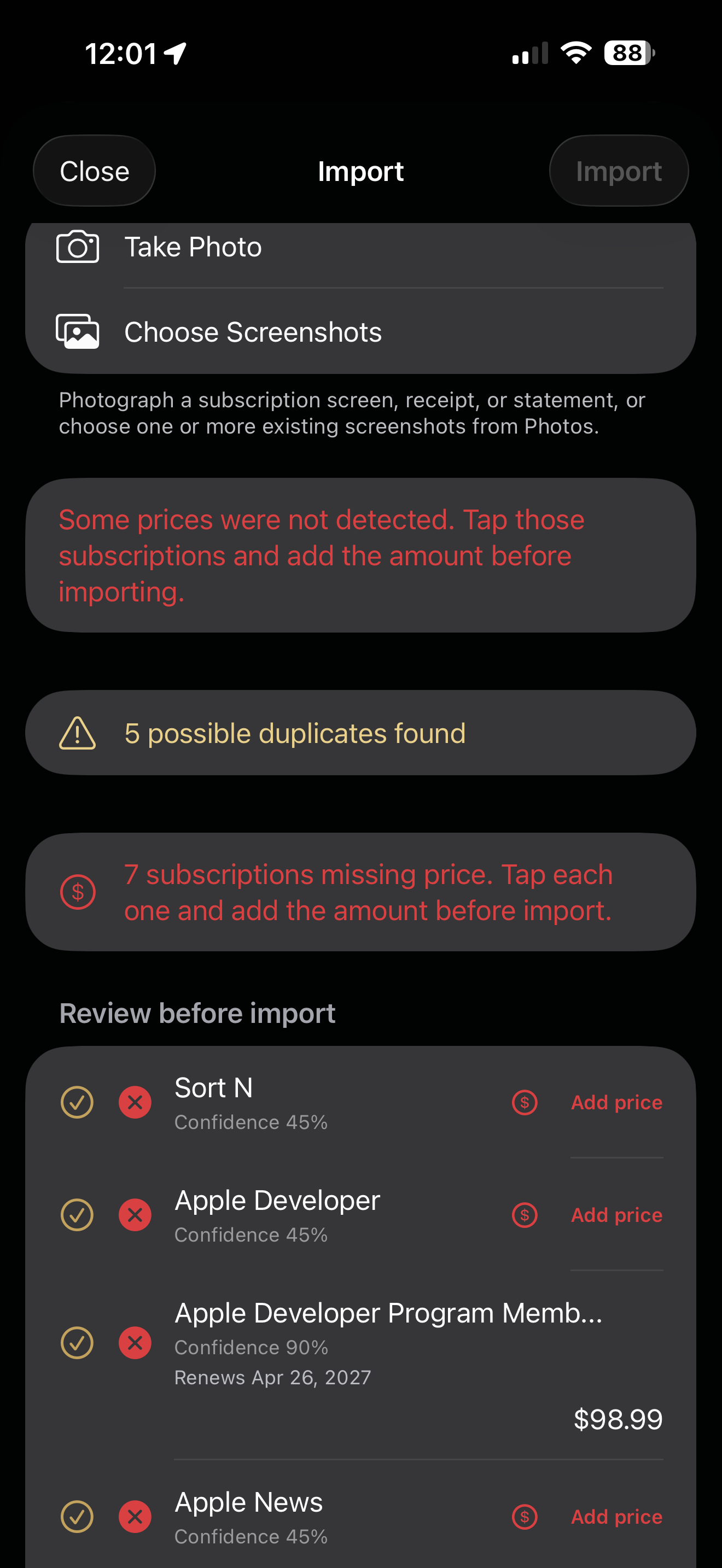
Dashboard totals, upcoming renewals, screenshot import review, and OCR correction before anything is saved.
Everything you need to take back control of recurring spend.
Screenshot import with on-device OCR
Tap a screenshot of your Apple Subscriptions page and Vision OCR pulls out every subscription, price, and renewal date. Review each detection before it lands — nothing is added behind your back.
Live monthly spending dashboard
One number, front and center: your estimated monthly total. Add an item or correct a price and it updates instantly. An upcoming-renewals panel shows what hits your card in the next 30 days.
Review list with savings forecast
Mark anything “Considering canceling” to see possible monthly and yearly savings, with cancellation notes and a URL kept right next to the subscription.
Local renewal reminders
Optional iOS notifications fire one day before each renewal. Reminders are scheduled locally — no servers, no tracking, no push network.
Price-history tracking
If a future import shows a price change for a subscription you already track, Subscription Radar logs the previous amount — so silent price hikes don't go unnoticed.
JSON backup & CSV export
Take your data with you. Export a JSON backup to AirDrop to a new phone, or share a CSV with your spreadsheet of choice. Your data is yours.
From install to first insight in under three minutes.
Open Apple's Subscriptions page
On your iPhone, go to Settings › [your name] › Subscriptions and screenshot the active and inactive lists. The screenshots stay in Photos — nothing is uploaded.
Import the screenshots
Open the app, tap Import screenshots, and choose them. Apple's Vision framework reads the text on-device, then a review screen lets you edit, remove, or accept each detection before it's saved.
Add anything OCR missed
Subscriptions billed outside Apple (Netflix on the web, a gym, a newsletter) won't appear in the Apple list. Tap Add to enter them manually — name, price, billing period, renewal date.
Review and decide what to cancel
Open any subscription and toggle Considering canceling. The Review list shows potential savings; add a note or paste the cancellation URL so you can come back when ready.
Turn on renewal reminders (optional)
Open Tools and allow notifications. Subscription Radar sends a local reminder one day before any subscription with a known renewal date.
Back up or move your data
From Tools, tap Export to save a JSON backup or share a CSV. Importing JSON onto a new phone restores everything — no account or cloud sync.
Your subscription data never leaves your phone.
Subscription Radar processes screenshots on device with Apple's Vision framework and stores information locally in the app's sandbox. It does not create an account, connect to banks, read your Apple ID or email, include third-party analytics or ad SDKs, or transmit subscription data to any server.
- Data not collected. The App Store privacy label is “Data Not Collected.”
- On-device OCR. Screenshots are read locally by iOS Vision — never uploaded.
- No background reading. The app only sees what you explicitly hand it.
- You own your data. Export a full JSON backup or CSV at any time.
Common questions, answered.
OCR didn't pick up one of my subscriptions. What do I do?
Check the review screen during import. If a row is missing or wrong, tap Add manually and enter the details by hand. You can also retake the screenshot in better lighting or a larger font size — clearer source text means cleaner OCR.
Can I track a subscription that's not billed through Apple?
Yes. Apple imports and manual entries are treated the same. Tap Add and enter any recurring charge — gym, web-billed streaming, newsletter, software tool. It counts toward your monthly total and can have its own cancellation notes.
How do I cancel an Apple subscription from inside the app?
Apple requires cancellations in Settings › Subscriptions. Subscription Radar lets you store the cancellation URL or steps in the notes so you can find them fast, but the actual cancel button is tapped in iOS Settings.
Will my data sync across devices?
Not automatically — the app is fully on-device by design. To move data, use Tools › Export to share a JSON backup, then import it on the second device.
I think I found a bug or have a feature request.
Email daniel@cywinskidigital.com with a short description and, if relevant, a screenshot. Real reports get a response within a couple of business days.
Where can I read the privacy policy in full?
The full statement is on the Subscription Radar Privacy Note. Short version: data not collected, on-device only, no analytics, no ads, no sharing.
Designed and built end-to-end — want one for your business?
I take iPhone apps, websites, and internal tools from blank page to App Store or production. If you have an idea to ship, let's talk.